Trips are a Premium feature for planning travel from a weekend road trip to a multi-week vacation. A Trip is a special kind of project with stops, dates, maps, weather forecasts, reservations, and shared expenses. This guide walks through the pieces.
Premium required. Trips are not available on the free tier. To collaborate with someone on a trip, both of you need an active Premium subscription.
Creating a Trip
- From Projects, tap New Project.
- Choose Trip as the project type.
- Give it a name (e.g., "Summer in Italy") and pick start and end dates.
You can edit the dates anytime — if you shorten a trip, stops outside the new range stay in the project but warn you with an out-of-range badge.
Stops
A stop is a place you'll be on a specific date or date range. Add stops one at a time:
- Tap + Stop, search for a city or address (powered by maps), and choose start and end dates within the trip.
- Each stop gets its own day-by-day plan, weather forecast (when within the forecast window), and notes section.
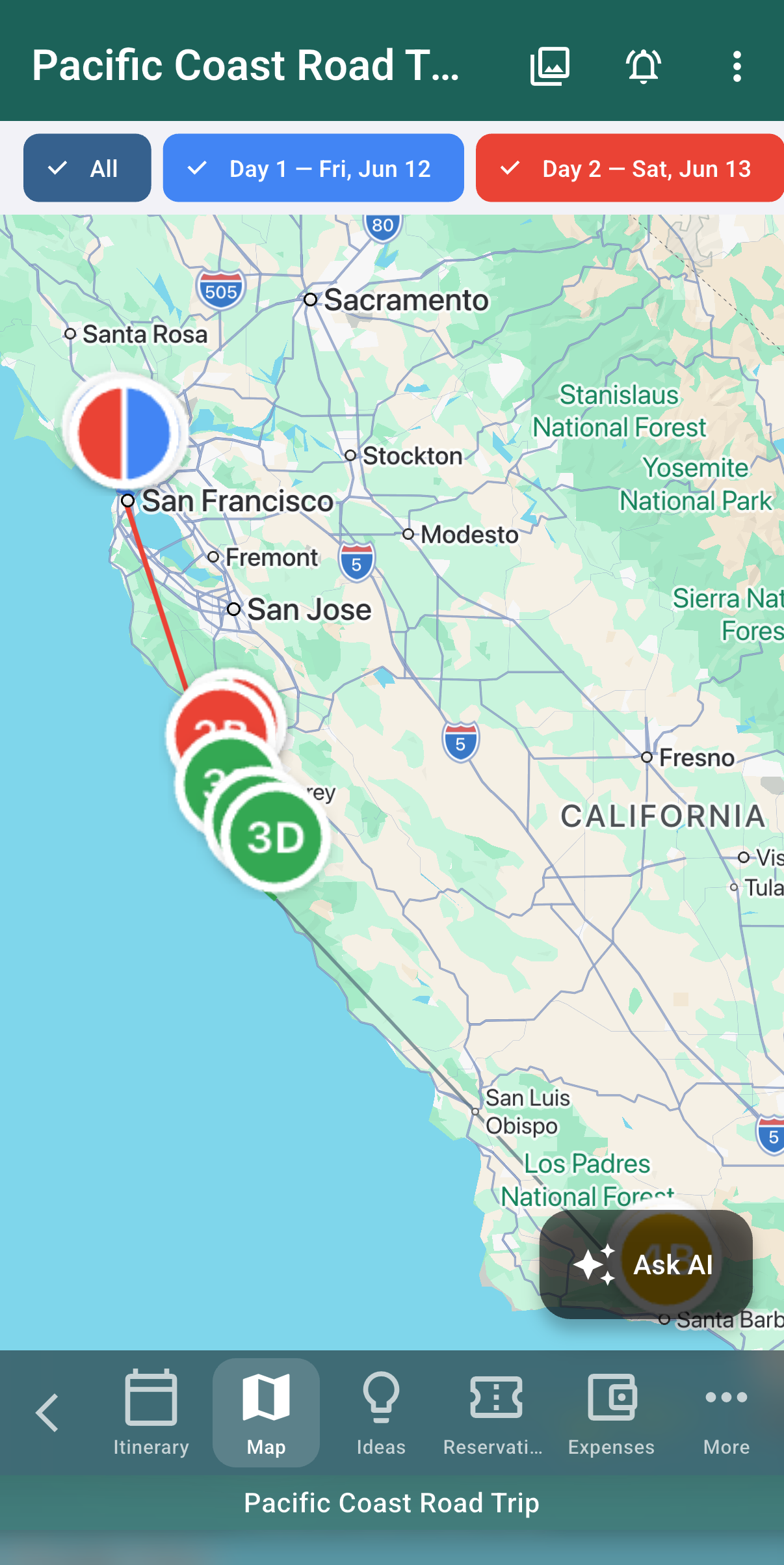
- Stops show on an interactive map with the route between them visible at a glance.
Reorder stops by dragging. Date ranges can't overlap with another stop in the same trip — if you try, the app prompts you to fix the conflict.
Weather
Each stop pulls a weather forecast for its date range once it's within about 10 days of the present. Beyond that forecast window, stops show climate normals instead of a real forecast. Forecasts refresh automatically as your trip approaches.
Planning with AI ("Help me plan")
If you'd rather not build an itinerary from a blank page, start the "Help me plan" guided planner from inside a trip. It opens the Ask Focal Point assistant scoped to that trip — it knows your dates, your stops so far, and where you're headed, and works with you to fill in the gaps. (Premium, like the rest of Trips.)
As you chat, the assistant proposes places as tap-to-add cards — each shows what it is, a rough visit time, and an Add button that drops it straight onto a day. Underneath, a row of follow-up suggestions keeps the conversation moving ("add all three", "something for kids?", "plan the drive back"). Nothing is added to your trip until you tap Add, so you can browse ideas freely.
Quick suggestions
You don't have to run the full planner to get ideas. Ask the assistant something like "what should we see near our Reykjavik stop?" and it returns a short, location-aware list you can add from. Handy when you've got most of a trip planned and just want to fill one afternoon.
Drive routes
When a leg of your trip is a drive, the planner can offer a route choice — pick between alternatives (e.g., the fast highway vs. the scenic coastal road) on a map. Once you lock in a route, Focal Point can show a weather-by-time timeline along it, so you can see the temperature, precipitation, and wind you'll hit at each point depending on when you set out. Your chosen route is saved with the trip.
Stop research highlights
Open a stop and ask Focal Point to research it. The assistant enriches the stop with AI-generated highlights (what's worth seeing or doing there), and where it can find them, an official website, a booking link, and a rough price range. It's the fast way to turn "we'll be in this town" into an actual plan.
Separately, when you create a stop, Focal Point quietly tags it in the background with a category, a typical visit duration, and a walking-distance estimate — so the itinerary has useful detail without you filling it in. That background work (and any research you run) is covered by Premium; see Premium → AI features.
Reservations
Reservations let you track flights, hotels, car rentals, restaurants, tours, and other booked items. Add a reservation by tapping + Reservation from inside a trip, then enter the type, dates and times, location, confirmation number, party size, and any attachments (boarding passes, vouchers, confirmation PDFs). Reservations appear on the day-by-day itinerary alongside your stops.
Day-by-day itinerary
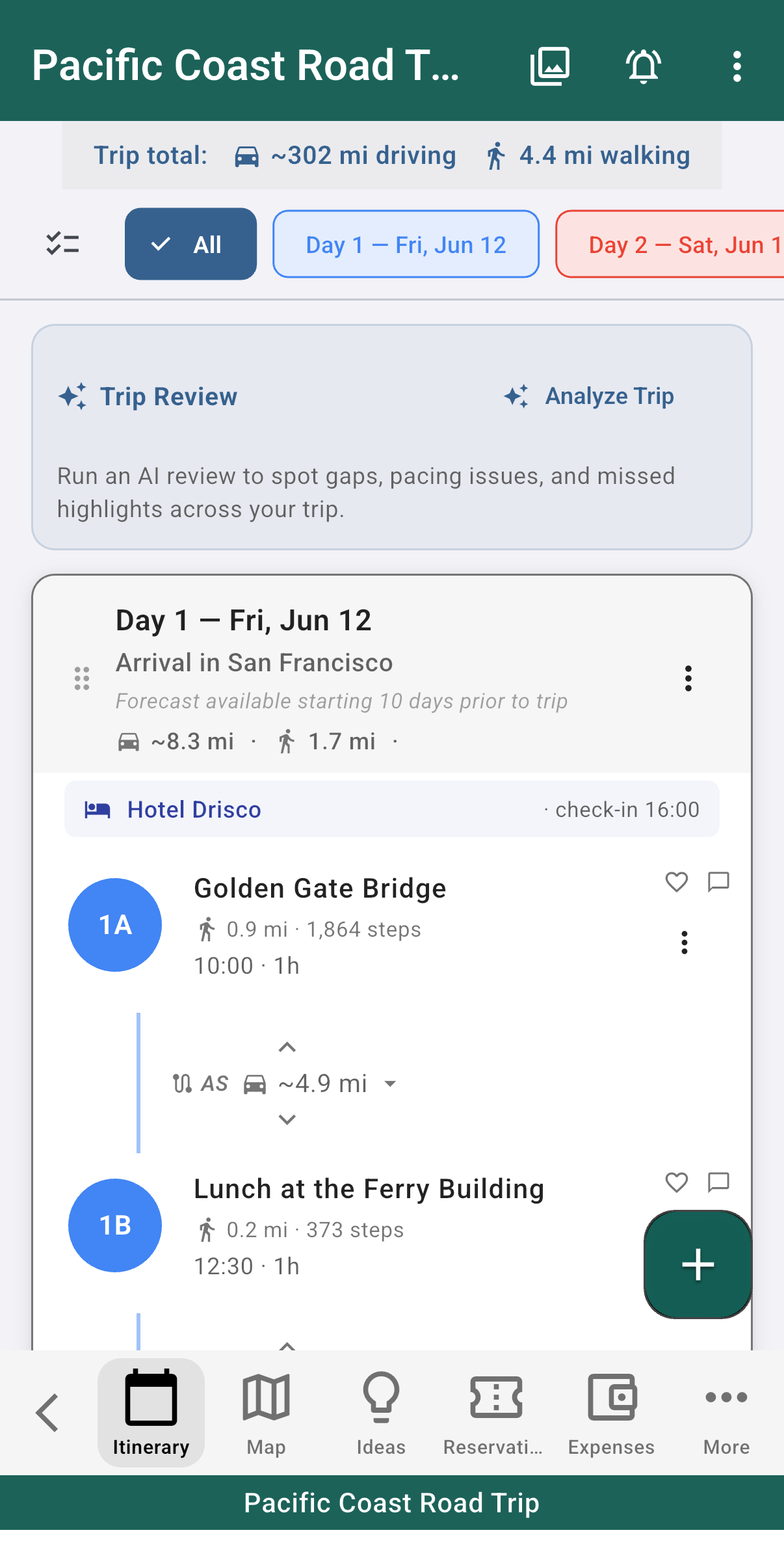
The itinerary view rolls up everything happening on each day — which stop you're at, the weather, scheduled reservations, and any tasks tagged with that day. You can add ad-hoc activities, notes, or to-dos to a day even if they aren't tied to a stop.
Day labels
Each day in your itinerary can have a short label that captures its purpose (e.g., "Arrival in Reykjavik" or "South Coast Waterfalls"). Tap a day's edit affordance to set the label — it shows up underneath the auto-generated "Day N — Weekday, Date" header on the itinerary card, the day selector dropdown, and the exported PDF. Days without a label just render the date line, no empty placeholder.
Lodging auto-anchors
When you add a hotel or airbnb reservation that spans multiple days, Focal Point automatically creates two linked "anchor stops" for each covered day:
- End-of-day anchor — "you sleep here tonight," on every night the reservation covers (check-in day through the night before check-out).
- Start-of-day anchor — "you wake up here this morning," on every morning the reservation covers (each day after each night, including check-out morning).
The anchors share the hotel's name, address, and map pin. If you edit the reservation, the anchors follow. If you delete the reservation, the anchors are removed too — you don't need to clean them up by hand.
If you want a different layout (e.g., you'd rather not see the morning anchor), you can delete it directly from the itinerary like any other stop. The reservation won't re-spawn it unless you re-edit the reservation.
How dates are stored
When you set a trip's start and end date from the calendar picker, Focal Point stores the calendar date as the canonical fact — not a wall-clock time. This means your trip reads correctly as "Jul 1 — Jul 8" whether you're viewing it from Denver, Reykjavik, or Tokyo. Reservation times (a 3 PM check-in, a 9 AM flight) are wall-clock and shown in the relevant location's local time.
Expenses
Trips include shared-expense tracking: log a charge, mark who paid, and split it among trip members (equally or by custom share). The app keeps a running balance of who owes whom and can suggest the minimum number of payments to settle up at the end.
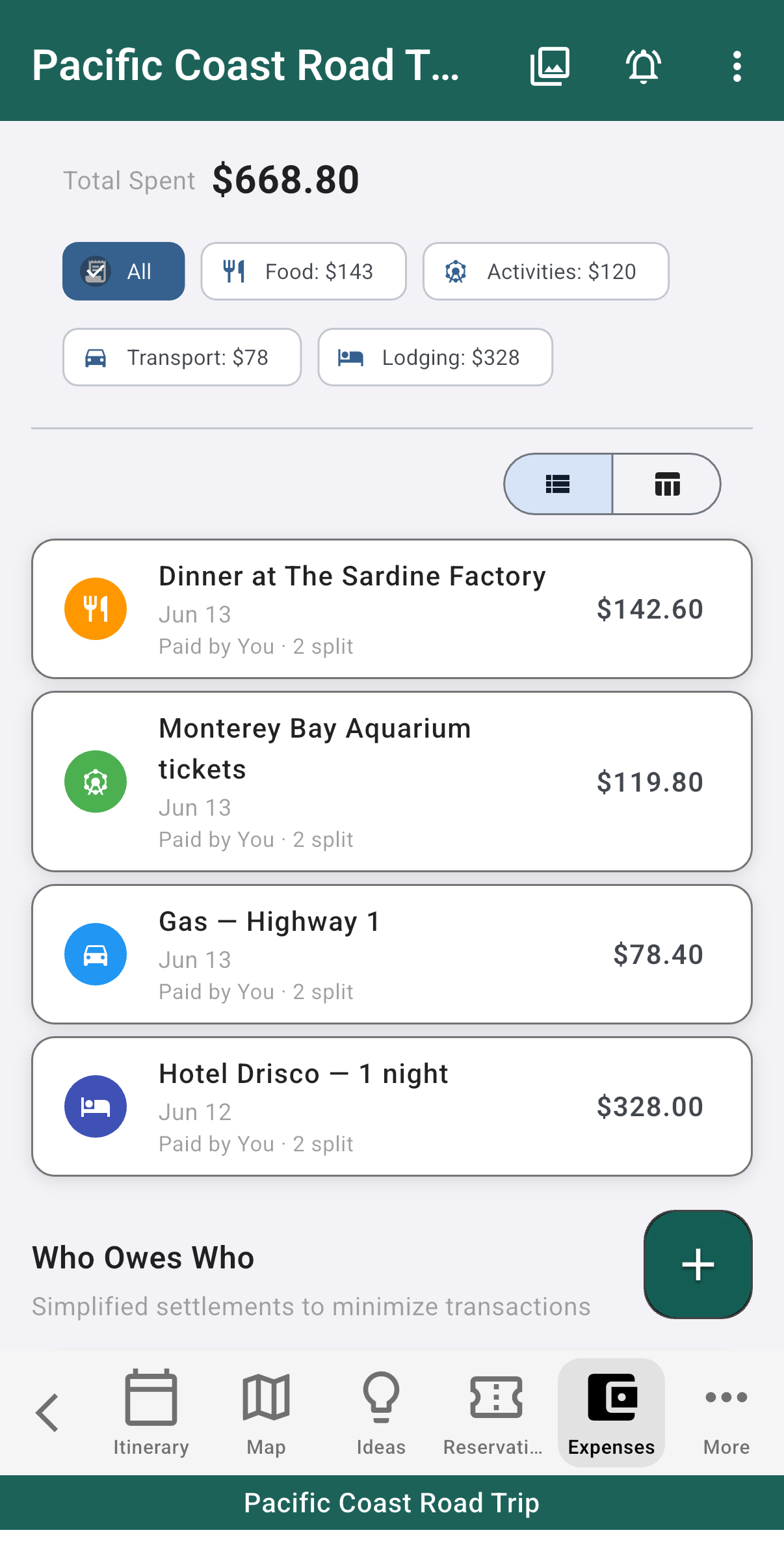
You can scan receipts with your camera and Focal Point will fill in the merchant, amount, and currency where it can recognize them.
Recording settle-up payments
There are two different things to track on a trip, and Focal Point keeps them separate:
- Expenses — what was spent (the $240 hotel, the $60 dinner) and who it's split among. These drive the "who owes whom" balance.
- Payments — money that actually changed hands to settle up ("Sam paid Alex $80"). Logging a payment draws down the balance so it reflects reality as people square up — not just the theoretical split.
At the end of a trip, the running balance plus your recorded payments tell you exactly who still owes what.
Currencies
Expenses and payments each carry their own currency (defaulting to USD), so a trip with charges in dollars, euros, and krónur stays accurate — you record each item in the currency you actually paid, rather than converting in your head.
Splitting with non-Focal-Point travelers
Sometimes you're traveling with someone who doesn't have a Focal Point account — a partner, a friend's kid, a non-tech-savvy parent. You can still include them in expense splits by adding a ghost member to the trip:
- Open the trip's settings and find the "Travelers" or "Members" section.
- Tap "Add ghost member" and enter a display name (e.g., "Alex" or "Mom").
- The ghost shows up in every expense splitter the same way a real member does, and the settle-up math works the same way.
Ghost members can't actually sign in or see the trip — they're just placeholders so the math works out. If your travel partner later signs up for Focal Point, you can replace the ghost with their real account.
Sharing a Trip
- Open the trip and tap the share icon.
- Enter the email of the person you want to invite. They need a Focal Point account and an active Premium subscription.
- Choose their role: Member (full collaboration) or Admin (can also manage other members + delete the trip). See Projects & Sharing for the full permission model.
Shared collaborators see the same stops, reservations, itinerary, and expenses you do. Changes sync in real time.
Calendar integration
Trip dates and reservations appear on Focal Point's calendar view alongside your tasks and events. If you connect Google Calendar (in Settings → Integrations), trip-related events sync there too.
Common gotchas
- Stop dates must fit inside the trip dates. If you extend the trip, previously-out-of-range stops automatically clear the warning.
- Time zones follow the stop's location. A flight reservation departing London at 9 AM stays at 9 AM local time even if you're viewing the trip from Denver.
- Collaborator Premium status is checked on each open. If a collaborator's Premium lapses, they keep view access but lose edit access until they resubscribe.
Was this helpful? Email support@milehighsoftwaresolutions.com with feedback, corrections, or questions we should add here.